Switching to Linux: A Complete Beginner’s Guide (From Windows to Linux—and Back Again)
After using various versions of Windows on my laptop over the years, I noticed a significant decline in performance after upgrading to Windows 11. The system frequently became slow and unresponsive, often hanging while I was working on documents or videos. Restarting the system became a routine necessity.
Faced with these challenges, I decided to explore an alternative—and that’s when I turned to Linux. With proper guidance, I successfully installed Linux Mint (Cinnamon Edition), and the experience has been refreshingly smooth.
If you are facing similar issues, this guide will help you understand why Linux is worth considering and how to make the transition step by step.
Why Choose Linux Over Windows?
1. Better Performance
Linux runs efficiently even on older systems with limited RAM and storage. Unlike Windows, it does not slow down over time due to background processes.
2. Free and Open Source
Most Linux distributions, including Ubuntu and Linux Mint, are completely free. You also receive regular updates without licensing costs.
3. Enhanced Security
Linux is far less vulnerable to viruses and malware. In most cases, antivirus software is not required.
4. Stability and Reliability
Linux systems are known for their stability. They rarely crash and can run for long durations without needing a restart.
5. High Customization
You can customize almost every aspect of Linux—from appearance to functionality—based on your preferences.
6. Software Availability
Essential applications such as browsers, office tools, and media players are readily available. You can also install Google Chrome easily.
Popular Linux Distributions for Beginners
If you are new to Linux, the following distributions are highly recommended:
-
Linux Mint (Best for Windows users)
-
Ubuntu
-
Zorin OS
Installing Linux Alongside Windows (Dual Boot Method)
Dual booting allows you to use both Linux and Windows on the same system.
Step 1: Download Linux
Visit the official Linux Mint website and download the ISO file (around 2–3 GB).
Step 2: Create a Bootable USB Drive
Use a tool like Rufus:
-
Insert a USB drive (minimum 8 GB)
-
Open Rufus
-
Select your USB device
-
Choose the downloaded ISO file
-
Click Start
Your bootable USB is now ready.
Step 3: Backup Important Data (Very Important ⚠️)
Before proceeding:
-
Backup files from C, D, E, and F drives
-
Use an external hard disk or pen drive
Step 4: Boot from USB
-
Restart your laptop
-
Press the boot key (HP laptops usually use ESC or F9)
-
Select the USB drive
Step 5: Try Linux Without Installing
Select “Try Linux Mint”
This allows you to:
-
Test performance
-
Check internet, sound, and display
-
Explore the interface
No changes are made to your system at this stage.
Step 6: Start Installation
Click “Install Linux Mint”
Step 7: Choose Installation Type
✅ Recommended (Safe Option)
Install Linux Mint alongside Windows
-
Keeps Windows intact
-
Adds Linux as a second OS
⚠️ Risky Option
Erase disk and install Linux
-
Deletes all data (C, D, E, F drives)
Step 8: Allocate Disk Space
If choosing dual boot:
-
Adjust the slider
-
Example:
-
Windows → 60%
-
Linux → 40%
Step 9: Complete Installation
-
Enter your name and password
-
Select time zone
-
Click Install
Wait for about 15–30 minutes.
Step 10: Restart the System
-
Remove the USB drive
-
Restart your system
You will now see a menu to choose between:
Installing Linux by Replacing Windows
If you want to completely remove Windows:
-
Follow Steps 1–4 above
-
Choose “Erase disk and install Linux”
-
Continue installation
After completion, only Linux will remain on your system.
How to Remove Windows After Installing Linux (From Dual Boot)
If you later decide to keep only Linux:
-
Boot into Linux
-
Open a partition tool (like GParted)
-
Delete Windows partitions (NTFS format)
-
Expand the Linux partition
-
Update bootloader using:
Windows will no longer appear in the boot menu.
How to Remove Linux and Keep Only Windows
To revert back to Windows:
-
Boot into Windows
-
Open Disk Management
-
Delete Linux partitions (ext4 format)
-
Open Command Prompt (Admin) and run:
-
Restart the system
Your system will now boot directly into Windows.

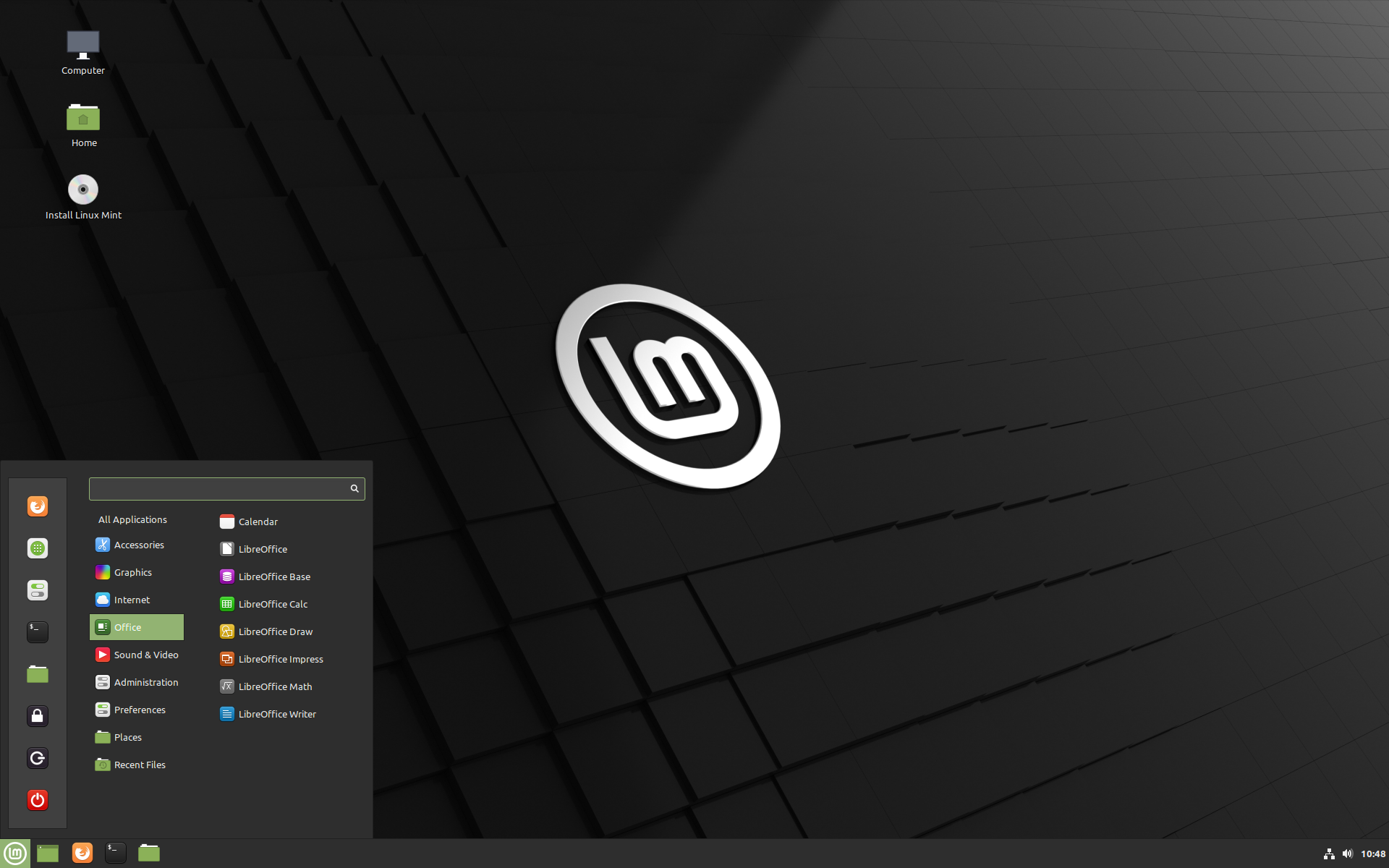
Appearance of Linux OS screen in Laptop
Common Issues and Useful Tips
-
If fonts appear too small in Linux:
-
Adjust Display Scaling in Settings
-
Modify font size separately if needed
-
Always take a full backup before partitioning
-
For beginners, Linux Mint offers the smoothest transition from Windows
Final Thoughts
Linux is a powerful, secure, and efficient alternative to Windows—especially for users struggling with performance issues. The ability to dual boot makes it easy to explore Linux without fully giving up Windows.
Once you become familiar with it, you may find Linux not only faster but also more reliable and enjoyable for everyday use.