Google ad

Showing posts with label Technology. Show all posts

Sunday, April 3, 2022

Know about Card Skimming and how to protect your card


Of late there are many reports about frauds related to  Credit/Debit/ATM cards. In many instances it is reported that the card details were obtained by the  fraudsters  using a technique called "Skimming". 


In this article, the modus operandi of skimming and the precautionary steps to be taken by the card holders are given for the benefit of card users.


What is Card Skimming?

Skimming is the unauthorised copying of information stored on the magnetic strip of a credit/debit/atm card.  It is typically an "inside job" by a dishonest employee of a legitimate merchant. The dishonest employee usually procures a victim's  card number using basic methods such as photocopying receipts or more advanced methods such as using a small electronic device (skimmer) to swipe and store hundreds of victims’ credit card numbers

The employee  sells the information through a contact or on the Internet, at which point counterfeit cards with your details on it are made. The criminals go on a shopping spree with a copy of the credit or debit card, and cardholders are unaware of the fraud until a statement arrives with purchases they did not make. 

Skimming of ATM cards:


Instances of skimming have been reported where the perpetrator has put a device over the card slot of an ATM (automated teller machine), which reads the magnetic strip as the user unknowingly passes their card through it. 


These devices are often used in conjunction with a miniature camera (inconspicuously attached to the ATM) to read the user's PIN at the same time. This method is being used very frequently in many parts of the world, including South America, e.g. in Argentina and Europe, e.g. in the Netherlands 


Another technique used is a keypad overlay that matches up with the buttons of the legitimate keypad below it and presses them when operated, but records or transmits the keylog of the PIN entered by wireless. 


The device or group of devices illicitly installed on an ATM are also colloquially known as a "skimmer". Recently-made ATMs now often run a picture of what the slot and keypad are supposed to look like as a background, so that consumers can identify foreign devices attached. (Source:http://en.wikipedia.org/wiki/Credit_card_fraud).


Preventive steps to avoid fraud by skimming:

  • If you are in a restaurant or in a shop and the assistant wants to swipe your card out of your sight, or in a second machine, you should ask for your card back straight away and either pay with a cheque or cash, or not make the purchase.
  • Keep your credit card and ATM cards safe. Do not share your personal identity number (PIN) with anyone. Do not keep any written copy of your PIN with the card.
  • Check your bank account and credit card statements when you get them. If you see a transaction you cannot explain, report it to your  bank.
  • Choose passwords that would be difficult for anyone else to guess and keep your password secret.
  • If you are using an ATM, take the time to check that there is nothing suspicious about the machine like an unusual gadget or camera .If the ATM looks suspicious, do not use it and alert the bank which owns the ATM.

       FINALLY  HOPE THAT ALL WILL AGREE THAT PREVENTION IS BETTER THAN CURE!           


Thursday, April 6, 2017

Computer Mouse Tips To Know

Image result for OPTICAL MOUSE


While the mouse may seem like a trivial aspect of your computer, there are probably a lot of things you don't know about its use. 

Here are some great tips on how to maximize your use of the mouse, which will increase your overall productivity on the computer.

1. Shift Key and Mouse Click

In text editing programs like Microsoft Word and even on your regular webpage, you can highlight all or portion of a certain text using the Shift key and clicking on your mouse. Place the cursor (the sign of the mouse) at the beginning of a paragraph and hold down the Shift key. Click at the end of the paragraph to highlight the entire thing, or wherever in the text that you would like to end the selection.

Another tip: Holding down the Alt key while highlighting text in a text editor will allow you to selectively highlight the text. This is most useful if a paragraph or other text is in a column.

2. Use the Scroll Wheel to The Max

Most computer mice have a scroll wheel in between the right and left click buttons that allows you to scroll up and down the page by moving the wheel. However, this wheel can be used to do much more than just scroll!

- The mouse wheel can be used as a button. Pressing down on the wheel is like clicking with a third mouse button. You can press down on a link to open the web page in a new tab in your browser. It can also be used to close a tab in the browser by clicking the wheel on an already open tab.

- Hold down the Shift key as your scroll up and down in your Internet browser to quickly move back and forward between webpages. Scrolling up goes forward while scrolling down goes back.

- To zoom in and out on a web page or document, hold down on theControl (Ctrl) key and scroll up to zoom in, scroll down to zoom out.

- Some mouse wheels can be pushed left or right to move backwards (left) and forwards (right) on a webpage.

3. Select With Double or Triple Clicks


Words can be selected by double clicking the word. If you want to highlight an entire paragraph, click the mouse button three times on the text

4. Right-Click

You can use the right-click when you want to highlight text or wish to view the properties of an object. For example, if you highlight text, you can right-click on the highlighted item and copy it, then right-click anywhere else to paste it.

Another tip: If you right-click text and drag it while continuing to hold the right mouse button, when you let go you will be given the option to move or copy the text. This will save you the extra step of having to right-click again where you want to paste the text.

5. Ctrl Key and Mouse Click

When you hold down the Ctrl key, you can left-click to select multiple files or highlight multiple sections of text. You can also hold down the Ctrl key and use the down or up arrows to select the text.

6. Use Mouse Side Buttons

Newer computer mice have side buttons on the side of the mouse (next to the usually right and left keys). 

Image result for mouse side buttons
These buttons can be programmed to do most anything, but by default, the left-thumb button can be used to go back on a web page, and the right button to go forward.

7. Use Snap to Feature

Windows has a handy 'Snap To' feature that will automatically move your mouse to buttons in the dialog box, such as the 'X' to exit or the '_' to minimize. For example, to close a window, you may get a prompt asking if you really want to perform the task. With the Snap To feature, the mouse will automatically move to the OK button so that all you have to do is click if you agree. To enable this feature, open the Mouse properties under the Control Panel, and check 'Snap To' under the Pointer Options tab.

8. Manage an Open Window

Double-click on the top title bar of a window to maximize the window or, if it is already maximized, to resize it. Double click on the icon for the window in the top left corner to close that window.

9. Move the Mouse With Your Keyboard


Instead of using a regular mouse, you can enable your computer to use the number pad instead. This trick takes some time to master, but it can make your use of the computer much more efficient.


10. Select with double and triple click 

This is the most used tip but for the completeness of  this post  i have mentioned it. You can select a word by double clicking it. And if you want to highlight the whole paragraph then click the mouse button three times on any paragraph.


11. Hold Your Mouse Correctly!

There is no need to hold onto your mouse for dear life! The mouse will move well with just a light touch, which will also protect the health of your wrist. This is important for those that use the computer for hours a day, because incorrect posture on the mouse, or keyboard for that matter can cause a lot of unnecessary pain.


Customize your mouse

Finally, if you have a mouse with more than two buttons, installing the included mouse software allows you to customize the mouse even more. 

For example, if you don't use the side buttons to move back and forth in a web page, change it to something you do more often, such as switching between open windows or opening the calculator.

Source:
http://www.computerhope.com/tips/tip32.htm
http://www.techonicals.com/2012/10/computer-mouse-tips-every-computer-user.html

Thursday, March 3, 2016

Li-Fi could soon replace Wi-Fi with speeds up to 100 times faster


LED lamps in our houses could soon provide you with blazing-fast Internet speeds, leaving the  old Wi-Fi connection in the dust. It's all thanks to a new technology called Li-Fi, short for "light fidelity," which transmits information wireless via visible light.
What is Li-Fi?
Light Fidelity (Li-Fi ) is a bidirectional, high speed and fully networked wireless communication technology similar to Wi-Fi. The term was coined by Harald Haas ] and is a form of visible light communication and a subset of optical wireless communications (OWC) and could be a complement to RF communication (Wi-Fi or Cellular network), or even a replacement in contexts of data broadcasting. It is so far measured to be about 100 times faster than some Wi-Fi implementations, reaching speeds of 224 gigabits per second.
It is wireless and uses visible light communication or infra-red and near ultraviolet (instead of radio frequency waves) spectrum, part of optical wireless communications technology, which carries much more information, and has been proposed as a solution to the RF-bandwidth limitations.
How fast will be Li-Fi?
The thing that makes Li-Fi so revolutionary is its incredible speed, up to 100 times faster than Wi-Fi. With that speed we can download contents of 23 DVDs in just one second using a Li-Fi connection. Laboratory tests have shown speeds of over 200 Gbps. It could solve the bottleneck problem that currently exists with our Wi-Fi networks, which will only be compounded as an estimated 50 million different objects and devices are expected to be connected to the Internet by 2020.
What is the disadvantage of Li-Fi?
For all of its advantages, Li-Fi does has one drawback. Because it transmits data with visible light, our device has to be in a lit room for it to work. 

Forget about using it in the dark, or out in the bright sunlight for that matter. Sunlight interferes with the artificial light that is transmitting the information. Li-Fi also can't pass through walls, for the same reason that the light from a closed room doesn't illuminate any surrounding rooms.
Will Li-Fi replace WI-Fi completely?
So Wi-Fi will be continued to be in use even after Li-Fi gets widely implemented. The idea will be to use them in tandem, to get the benefits of each .

Wednesday, January 27, 2016

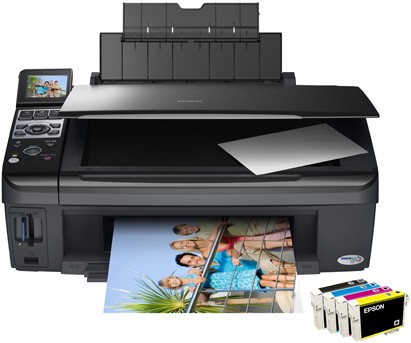
Tips for saving ink and money while using Inkjet printers

Most of the Inkjet printers cost a lot of money in maintenance since they dry very fast and we have to refill or replace the ink cartridges often.

By following these tips on the right way to use the printer we can save a lot of ink and money.

1) Avoid purchasing  cheap printers.

There are a lot of cheap printers in  the market today. It's important to be careful when buying them as the companies selling them might be looking to make their profit off of the ink cartridges rather than the printer itself. When buying a printer you should always look at the prices of the ink cartridges and their "life-span".

2) Use the right font.

A few years ago, several American students shocked the world by showing that if their government switched to a thinner font, it could save about 400 million dollars a year. While you won't be able to save that kind of money yourself, using a simple and thin font ( Garamond) can improve your ink usage by about 20%.

3) Use the low-quality setting.

Unless you are printing photos or really small items, there is no need to print in the higher printer settings. You can change this in the print setting after you send a document to the printer, usually under "print properties" or something similar. And unless you really have to use color, printing in black and white is recommended.

4) Use recycled cartridges.

Many shops today offer none-original ink in recycled packs, while some even 
offer refills if you bring your own empty cartridges. 

Printer companies claim this might harm your printer, but there is no clear evidence to support that.

5) Try using a refill kit at home.

Some ink cartridges can be refilled with a simple kit you can use at home and it's often very cheap to buy at stores. 

The big downside of this is the potential mess it might create and the work you will need to do each time you use it. However, if these things don't bother you, it's a pretty cheap way to do things.

6) Keep printing.

Just your car tells you it is out of gas even before the tank is empty, your printer will tell you it is out of ink even when there is still some left. This means that you can keep on printing, even with a low ink warming. It just means the writing might be a little grayer. It might also help if you just take out the cartridge and put it back in.

7) Save paper.

Printing paper can be just as expansive as ink and you can save a lot of money by printing on both sides of each page. Most modern printers have an automatic option to do so, you just need to turn it on. Take a look at the printer manual to see how it is done.

8) Save room when printing presentations.

If you are printing a PowerPoint presentation, you can put about 4 slides in a page and still read them with ease. 

This will save you both ink and paper. To do so, just look at the print menu on PowerPoint and change the settings to your liking.

9) Don't print the test paper.

Many printers do a test printing when you turn them on with no real reason. 
Look at the printer manual to find out how to disable this and only use your ink and paper on what you really need.

10) Print something once a week.

If you don't use your printer for a long time, the ink in the bottom of the cartridge can dry out and then the whole cartridge becomes useless. To prevent this just print out a single line of text once a week. 

11) Wait before turning off your printer.

After a print job is done, the cartridge is returned to a protected and closed part of the printer. If you force it to shut down before it can do that, you risk the ink drying up and maybe even leaking.


12) Only print the final version.

There is no bigger waste than printing something only to discover an error and then having to print it again. It is important to double-check spelling and page layout before you print a document to make sure you won't need to do it again.

Saturday, July 18, 2015

How to solve Common Computer Problems?

Anyone who owns a computer will encounter technical difficulties at one point or another, often causing no little amount of frustration. While some of these technical difficulties require professional help, there are quite a few that can be easily solved, even by novice users.
Computer Fixes

Computer Fixes

Computer Fixes


Computer Fixes


Computer Fixes


Computer Fixes
Computer Fixes


If you can’t open the attachment, it’s probably because you don’t have the right software. You can always google the type of file it is (such as .PDF, or .RAR) to find out how to open it, or use the site http://fileextension.info/  to find out what the file is and how to open it.
Computer Fixes

Computer Fixes